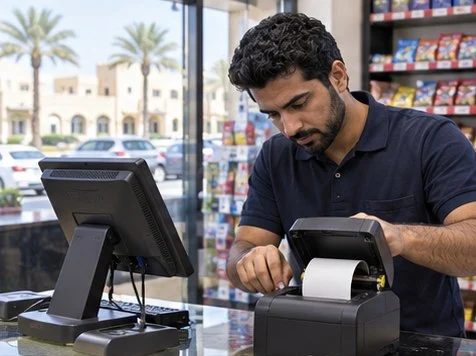
After a router change, verify the printer’s address and the POS printer configuration, then print a test receipt and a reprint. A successful printer self-test only confirms the printer can print locally.
Check the printer connection
Print the device configuration page and compare its address with the address saved in the POS. If the address changed, check the network configuration with the person managing the router. Use a consistent addressing plan for the printer and document it.
Test the checkout workflow
Run a training or approved test sale through the POS. Verify the receipt, reprint and any kitchen or label output used by that till. Document the affected counter, printer model, connection type and expected roll width before escalating.
What to check
| What you observe | What to do |
|---|---|
| Self-test prints but POS does not | Compare the POS configuration with the printer’s current address and interface. |
| Text is clipped | Confirm the receipt width configured in the POS and the installed roll. |
| Only one till is affected | Compare its settings with a working till. |
Frequently asked questions
Should I factory-reset the printer first?
Capture its existing settings and try a self-test first. A reset can remove the configuration you need to restore.
Does the browser tool test my POS app?
Use it to prepare diagnostics, then verify the actual receipt from the POS.