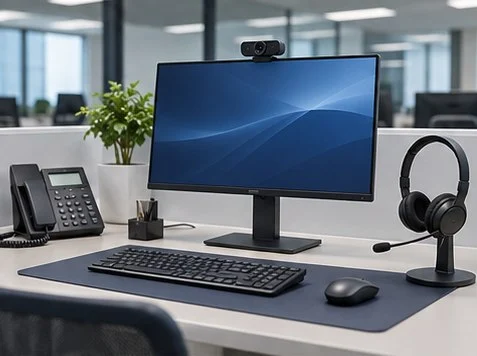
Check microphone access and the selected input separately from the webcam. A working video preview only confirms the camera path, and the meeting app may be listening to a different microphone.
Test outside the meeting
Open the microphone tester, grant permission and watch the level while speaking. Toggle the hardware mute button and compare the laptop microphone with your headset. If neither responds, check device privacy settings and test in the operating system.
Repeat with the intended app
Select the same input in the meeting app. Use a test call if the app offers it. If Bluetooth is involved, disconnect other paired devices temporarily and reconnect the headset before retesting.
What to check
| What you observe | What to do |
|---|---|
| Meter responds in browser only | Check the desktop app’s input choice and permissions. |
| No response in system settings | Check mute, connection and input device selection. |
| Others hear audio but you do not | Run a separate speaker test and select the output device. |
Frequently asked questions
Does webcam access allow microphone access automatically?
Browsers and operating systems can grant camera and microphone permissions separately.
Does a moving meter guarantee my meeting audio works?
Confirm the audio path with an app test call or a second participant.
Related tools and guides
- Check the browser microphone input
- Test the webcam separately
- Check left and right audio output
- Time Zone Overlap for Recurring Meetings
- Abu Dhabi Meeting Room AV Test Before Handover